Sunday, May 15, 2011

What is Server Maintenance?

thepulpyorange | Sunday, May 15, 2011 | Best Blogger Tips
server maintenance

Server maintenance involves the process of keeping a server updated and running so that a computer network can operate smoothly. Properly maintaining a server is usually the task of a network administrator, and it is vital to the performance of the network. If server maintenance is not conducted on a computer network, regardless of whether the network is small or large,application software usually will not run as well as expected. In some cases, a network may even experience total or partial network failure if proper maintenance is not conducted.
Maintaining a server requires a network administrator to conduct preventive maintenance. Essentially, this means that the administrator must review the server's performance as well as potential security risks and backup protocols at regular intervals. As part of preventative maintenance, an administrator typically ensures that automated system monitoring utilities are installed and appropriately configured. These utilities often come with the server’s hardware package.

Even with automated utilities in place, a solid server maintenance plan requires several basic steps. First, the administrator usually conducts a thorough examination of the network, including checking server log files, hard disk space, folder permissions, and redundancy. This review usually also includes monitoring network temperature applications to ensure theserver does not get too hot. If a machine overheats, for example, vital equipment like the central processing unit, memory, ormotherboard can be impacted.
Security and application functionality should also be examined as part of server maintenance. If required, security patches should be installed on individual computers within the network to ensure data is securely being maintained. The security review should also include reading server logs for evidence of computer hacking attempts or security alerts. In addition, the administrator should ensure that antivirus software is updated on all of the computers in the network.

During server maintenance, any essential service packs and software updates should be made to the network computers. Typically, these items can be installed after working hours so that network user activity is not disturbed. When necessary, a system correction, system restoration, or hardware component replacement may also need to be made.

server maintenance plan should also include a comprehensive backup plan. In the event of a system failure, the backup data will be vital in helping the network users retrieve their stored information. Depending on what kind of data is stored on aserver, it may need to be backed up daily, weekly, bi-monthly, or monthly. A good backup plan should always be tested regularly to ensure that it will meet data recovery requirements.

Windows XP Network Troubleshooting

thepulpyorange | Sunday, May 15, 2011 | Best Blogger Tips
Windows XP Network Troubleshooting

Troubleshooting TCP/IP - Detailed Steps

This article shows how to troubleshoot TCP/IP connectivity between computers on a Windows network.  If you haven’t already done so, disable XP’s Internet Connection Firewall on all local area network connections, andremove all firewall programs on the network.   Improperly configured firewalls are the most common cause of TCP/IP problems.

Open a Command Prompt Window

For many of these steps, you’ll be typing at the command prompt.  To open a command prompt window in Windows 2000 or XP, click Start | Run, typecmd in the box, and click OK.  To open a command prompt window in Windows 95, 98, or Me, click Start | Run, type command in the box, and click OK.  Type one command per line, and press Enter after each one to execute it.  To close the command prompt window, use the exit command.

Determine the TCP/IP Settings

Determine the TCP/IP settings of each computer on the local area network.  In XP, open the Network Connections folder, right click the LAN connection, and click Status | Support Details.  For example, here are the Status and Details views for the LAN connection on an Internet Connection Sharing host.


In Windows 95/98/Me, click Start | Run, type winipcfg in the box, and click OK.  Select the LAN adapter from the menu, and click More Info.  Here’s the winipcfgview for an ICS client running Windows Me.

You can also see the TCP/IP settings from the command prompt.  This is especially convenient if a computer has more than one network adapter.  Use the ipconfig /all command, which is available in all versions except Windows 95.  The output from this command can be long, so it’s best to write it to a file.  Specify the file name in the command this way:
   ipconfig /all >ipconfig.txt
Here’s the output for a Windows XP ICS host that’s sharing its cable modem connection:

Description of TCP/IP Settings

Here are the TCP/IP settings that are used in network troubleshooting:
  • IP Address – Unique address assigned to a network adapter.  A computer with multiple network adapters has an IP address for each one, and each one must be in a different subnet.
  • Subnet Mask – Used in conjunction with the IP address to determine which subnet an adapter belongs to.  At the simplest level, communication is only possible between two network adapters when they’re in the same subnet.
  • Default Gateway - IP address of a computer or router, on one of this computer’s local area networks, that knows how to communicate with subnets not present on this computer.  For an Internet connection, the default gateway is a router belonging to your Internetservice provider, and all access to sites on the Internet goes through it.  For an ICS client, the default gateway is the ICS host.  If you use a hardware router, it serves as the default gateway.
  • DHCP Server – If an adapter is configured to obtain an IP address automatically, this is the address of the server that provides it.  It could be your ISP, an ICS host, or a hardware router.
  • DNS Servers – IP address of one or more Domain Name Server computers. DNS servers translate Internet names (likewww.practicallynetworked.com) to their IP addresses (like 63.146.109.227).

Subnets

See our article on subnets for a brief description of how they work.  For more details, see this Microsoft Knowledge Base article.
If two computers are supposed to be on the same subnet, but aren’t, something is wrong with the network hardware or software configuration.  This is most likely to happen when one of them receives an IP address of 169.254.x.x, which indicates that:
  • It’s configured to obtain an IP address automatically.
  • It couldn’t find a DHPC server on the network to make the assignment.
  • Windows assigned it an Automatic Private IP Address.
See our article on Specific Networking Problems and Their Solutions for more information.

Pinging

The ping command is the basic tool for testing TCP/IP connectivity.  It sends a special packet (called ICMP Echo) to a particular IP address and looks for a reply.  If everything is working right, the reply comes back.  If not, the ping times out in a few seconds.  By default, the ping command repeats the process four times.  Here’s an example of an ICS client computer pinging a Windows XP Home Edition ICS host, using the host’s IP address and its computer name.
When ping fails, you’ll see one of these error messages:
  • Request timed out - The IP address is valid, but there’s no reply from it.  If the IP address is on a local area network, the most likely cause is a firewall program blocking the ping.
  • Unknown host  or Ping request could not find host  - The computer name doesn’t exist on the local area network.  Make sure that NetBIOS over TCP/IP is enabled.
  • Destination host unreachable – The IP address isn’t on a local area network, and the default gateway can’t access it.  Either there’s no default gateway, its address is wrong, or it isn’t functioning.

Pinging the Local Area Network

Here is a series of ping commands to use in finding where a problem occurs on a local area network.  Run them in the order shown, and don’t go on to the next command until all of the previous commands work properly.  In this example:
  • The computer being tested is named Winxp, with IP address 192.168.1.101.
  • There’s another computer on the network, named Win98, with IP address 192.168.1.123
Substitute the appropriate IP addresses and computer names for your network.
Command
Target
What Ping Failure Indicates
ping 127.0.0.1
Loopback address
Corrupted TCP/IP installation
ping localhost
Loopback name
Corrupted TCP/IP installation
ping 192.168.1.101
This computer’s IP address
Corrupted TCP/IP installation
ping winxp
This computer’s name
Corrupted TCP/IP installation
ping 192.168.1.123
Another computer’s IP address
Bad hardware or NIC driver
ping win98
Another computer’s name
NetBIOS name resolution failure
To fix a corrupted TCP/IP Installation on Windows XP, follow the steps in this Microsoft Knowledge Base article. For Windows 95/98/Me, un-install the TCP/IP protocol in Control Panel | Network, reboot, and re-install it. If that doesn’t fix it, use this procedure on Windows 95 or 98.

Pinging the Internet

You can also use ping to find a problem with Internet access.  Run these commands in the order shown, and don’t go on to the next command until all of the previous commands work properly.  Use the Default Gateway and DNS Server addresses that you got from the winipcfg oripconfig /all command.
Command
Target
What Ping Failure Indicates
ping w.x.y.z
Default Gateway
Default Gateway down
ping w.x.y.z
DNS Server
DNS Server down
ping w.x.y.z
Web site IP address
Internet service provider or web site down
ping www.something.com
Web site name
DNS Server down or web site down

reviewer

thepulpyorange | Sunday, May 15, 2011 | Best Blogger Tips

Top 10 Differences between Windows XP and Windows 7

30
Mar
If you skipped over Windows Vista like so many others have, you may be in for a shock when you upgrade from Windows XP to Windows 7. Microsoft’s newest operating system is a major shift in usability, convenience, and overall computing from previous versions of Windows.
Although not all are earth-shattering changes, listed below are the Top 10 differences between Windows XP and Windows 7. Many of these changes may seem like a big deal because you’ve gotten so used to how things work in XP. If you are considering upgrading from XP to Windows 7, be prepared for these changes.

1. No e-mail Client

Outlook Express (OE) has been a trusted friend since Windows 95, so much so that many people have never used another e-mail client. OE was removed from Windows Vista but was replaced with Windows Mail. Strangely, Windows does not ship with any e-mail client at all. Users must either purchase an e-mail client such as Outlook, use a free service such as Windows Live Mail, or download an open source e-mail client such as Thunderbird.

2. 32-bit vs. 64-bit

Although Windows XP did have a 64-bit version (Windows XP x64), many people are unaware that it even existed. When upgrading from XP to Windows 7, you will have to decide whether you want the 32-bit version (x86) or the 64-bit version (x64). Which you choose largely depends on your computer’s hardware and the availability of drivers and other software to make everything work in your PC.

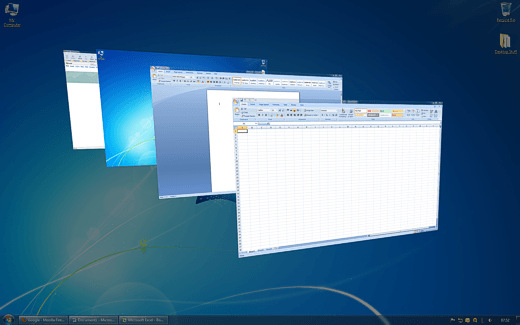
3. Aero Desktop

The Aero Desktop is really nothing more than a collection of window and desktop behaviors that make Windows 7 the prettiest version of the operating system to date. Features such as Aero Snap let you quickly organize open windows and transparency makes it easy to see what’s underneath other windows. With Windows XP think opaque, with Windows 7, think translucent.
Windows 7 Aero Desktop vs Windows XP

4. Documents and Settings

The Documents and Settings folder, the location for all protected personal files and folders, has been replaced with a simple Users folders. Not a big deal, but many techsupport personnel have spent hundreds of hours answering the simple question of where the Documents and Settings folder went in Windows 7.

5. Start Menu

The Start menu in Windows 7 has been completely reworked and has been met with several criticisms. No longer does the Start menu use fly-outs and scroll-outs to show you what shortcuts to programs and folders you have on your computer.
Now you must use a more conservative folder system that forces you to use a scroll bar to access shortcuts that can’t be displayed because you’ve reached the maximum number that can be shown at one time. Luckily, if you really like the Windows XP Start menu, there is a way to make the Windows 7 Start menu behave like XP.
Windows 7 Start Menu vs Windows XP

6. Ribbon

Introduced in Office 2007, it is clear that Microsoft will continue to push the Ribbon interface over the more familiar drop-down menu and toolbar approach to using programs. If you want to get a taste of the Ribbon, start up Microsoft Paint or WordPad on a computer running Windows 7 and you can see for yourself whether the Ribbon is going to be useful or just another technology forced upon you.
WordPad Ribbon Windows 7

7. Libraries

Windows 7 Libraries are nothing more than collections of files that are similar. Similar content that is located in multiple areas of your computer are brought together into the Library system to make finding files easier.
Of course, you can choose to use or not use Libraries depending on whether you find them useful. However, if you store a lot of media on your computer such as music or video and you want access to them without having to physically move them the same location or folder, Libraries may be for you.

8. DirectX 11

If you are a gamer, you know that you must keep up with advances in both hardware and software technology to get the most from your games. Windows XP will not support DirectX versions beyond 9.0c so if your games require a higher version such as 10 or 11, you have no choice but to move a more recent version of Windows.
As more and more people make the switch to Windows 7, the game developers and publishers are likely to take full advantage of more recent DirectX versions. Stick with XP too long, and you may be shut out of the newest games.

9. HomeGroup

Whether you have a simple or complicated home network, you know that any help you can get to make administration easier is always welcomed. HomeGroup is a major shift in home networking simplicity that makes older paradigms seem archaic.
Not much has changed in setting up a home network since Windows NT 4, an operating system from before Windows 95 that you may never have heard of. Marrying simplicity, easy setup, and stable connections, HomeGroup takes the guesswork and troubleshooting out of home networking on any scale.

10. Touch Support

Although touch interfaces have been around for a better part of a decade, touch has not yet replaced the familiar keyboard/mouse combination of navigating personal computers. Still, Windows 7 is the first operating system from the software giant to natively support touch as a computer interface.
If you think that you would like to be on the frontier of this emerging interface paradigm, Windows 7 is your only real choice if you want to run a Microsoft operating system.
Conclusion
Some people have become so comfortable working with Windows XP that they have avoided upgrading to Microsoft’s newest operating system. The Windows Vista fiasco didn’t help matters, forcing some diehard fans of XP to downgrade to make their PCs functional again.
If you are considering upgrading from Windows XP to Windows 7, be prepared for some new things, some missing things, and a few things in between. Still, the stability and usability of Windows 7 has been more or less established so you can rest assured that you are taking a step in the right direction by leaving XP behind.

pookks

thepulpyorange | Sunday, May 15, 2011 | Best Blogger Tips

Interview Questions for Desktop Support

Interview Questions for Desktop Support Technician/Analyst
General Questions
Q. What desktop operating systems are you familiar with?
A. Before you answer this question, you should have some background information on what operating systems are used within the organization you are interviewing with. Undoubtedly, you will be asked to elaborate on your skill set with each of these operating systems so it’s best to tailor your elaboration to the operating systems that are relevant to the hiring manager. This being said, don’t leave out mentioning experience in other operating systems. You never know whether the company may be evaluating the migration to a different OS.
Q. Have you used imaging software before? How do you find these tools useful?
A. Automation tools are an important part of your job as a desktop support technician. Elaborate on the tools that you’ve used. Hiring managers want to assess your in-depth knowledge and experience with using these tools. This means talking about how you use their various feature sets. (If you have an opinion, you probably know the product pretty well.)
Q. What are the pitfalls of using imaging software?
A. This question is meant to assess how well you know these products. For example, discussing the importance of testing the image demonstrates that you use these tools on a regular basis.
Q. Have you used any software distribution tools? If so, which ones and how were they used?
A. Like imaging software, software distribution tools are an important part of your job. Hiring managers are looking for knowledge that these tools exist and how they can be used to support your organization.
Q. What do you like most about desktop support?
A. Hiring managers are looking for what motivates you. Hopefully your answer will match the characteristics of the job: being busy, working with different people, and the challenges of learning new operating systems and configurations.
Q. What do you like least about desktop support?
A. The hiring manager is testing whether you will fit in with the existing team. An appropriate answer here would be not being able to resolve a problem in a timely manner for reasons outside your control, such as hardware failure. Stick to things outside of your control for the best response.
Q. When solving a desktop problem, do you prefer to work with the end-user, your peers, or on your own?
A. This is another question to determine your fit within the organization. Hiring managers understand that to be successful as a support technician you will have to work in a team environment. This means working with other employees, vendors, and end-users on a constant basis.
Q. Can you describe a situation where you have had to deal with a difficult person? How did you handle it? Would you do anything differently?
A. Desktop support can be very demanding some days. End-users only see their own priority needs and often are not interested in other demands on your time. This question explores how you deal with a difficult end-user by understanding their problem, assessing priorities, and communicating a timeframe for resolution. Often good communication can help both sides come to an agreement. Make sure you have an example with a successful outcome.
Q. How would you say you are able to handle stress?
A. Hiring managers are looking to see what coping techniques you can draw on to deal with stress. Sometimes from the answer, they can also determine whether you are prone to stress. When responding, some techniques for handling stress that you may want to talk about include continually evaluating what’s on your plate and prioritizing, communicating with your manager on what your priorities are, and making sure that you take a break to reenergize, particularly at lunch time.
Q. What do you see yourself doing two or three years from now?
A. Hiring managers want you to stick around. They realize that you will not be in this position forever, and they want to make sure there’s a desire to move up within the organization as well as the right fit. They ask this question to see whether there’s a growth path for you possible within the organization. As a desktop technician, natural growth paths are team leads, quality assurance, engineering positions, and entry-level development. Be honest about where you want to be in two to three years, and ask the interviewer whether they see your career path as a possibility.
Q. How do you learn new technologies?
A. Learning is an inherent part of the job. Hiring managers are looking for someone who enjoys learning technology on their own and who has the foresight to look for training opportunities. Besides the traditional books and manuals, don’t forget to include user groups, eLearning subscriptions, and IT professional sites such as CramSession.
Q. How do you prioritize tasks and manage your time?
A. What hiring managers want to know is whether you have time-management skills. Everyone manages their time differently, but think about how you handle e-mail, when you check voice mail, how you respond to pages, when you research and document, and how you pick up new trouble tickets.
Q. Imagine the following situation: you receive three simultaneous calls from three vicepresidents who need assistance immediately. How do you manage these conflictingpriorities?
A. Obviously this is a trick question. What the hiring manager is trying to assess is how you set expectations with each of the individuals, knowing very well that you won’t be able to assist all of them at the same time. They are also looking for how you will prioritize each of these incidents, including seeking assistance from peers and supervisors in order to meet user expectations. Don’t allow the “tyranny of the urgent” to divert you from managementestablished support priorities.
Q. How would you handle a user who continually misdiagnoses their PC issues?
A. By asking this question, the hiring manager is assessing your customer service skills. In this situation, you may want to discuss that the key is to not offend the user and turn them off to your support services. In handling this situation, you would pay particular attention to ways you can build trust with the user and lead them to the right resolution to their problem.
These components may include:
  • Acknowledging the user’s diagnosis
  • Asking the user to reproduce the problem
  • Finding a solution that works
Q. How do you handle setting up new employees?
A. This question is used by the hiring manager to assess your knowledge of common practices within the IT department, such as setting up new users. Obviously, the IT department plays a critical role in the productivity of the new employee. The role of the desktop technician is to help ease the new employee into the resources available to them and get them up to speed quickly. In responding to this question, you may want to talk about some of the tools you’ve used in
the past to help users acquaint themselves with their new environment. Some tools that help are:
  • A new-user welcome letter that is customized to the specific user with all their relevant information including telephone extension, how to access voice mail, and how to log in. It might also include a FAQ on getting help.
  • A “Getting to Know Your Helpdesk” document that provides an orientation to helpdesk service, such as how to contact the helpdesk, its hours of operation, what is and what is not supported by the helpdesk, and answers to common new-user questions.
Technical Questions
Q. What questions would you ask to help isolate a user’s problem?
A. This question is used by the hiring manger to assess your problem-solving abilities. The following represent some of the common questions that you would ask the end-user to help diagnose a situation:
  • When did the problem first start?
  • Has the system ever worked properly?
  • What was the last thing done to the system prior to the failure?
  • Is the issue intermittent or ongoing/constant?
  • Are there any error messages? If so, what are the specific error messages?
  • Has any new hardware been added to the system?
  • Has any new software been added to the system, including downloads from the Internet?
  • Has anything changed with the system (for example, has it been moved) since the issue presented itself?
  • Has anyone else had access to the system?
  • Are there any environmental factors that could be causing the issue?
  • Have you done any troubleshooting on the system on your own?
  • Have you checked all the cables/connections for a tight fit?
Q. What are the main differences between the following operating systems?
A. Unfortunately, most companies have not been able to standardize the operating systems used by users. It’s always critical that you know more than just the current version because there will always be a user who has a problem with an older version. By asking this question, the hiring manager is actually testing your knowledge of different operating systems that you may need to support. The following provides a concise summary of some of the major differences.
Windows 2000 and XP
Overall, XP is a minor update with Windows 2000 designed to get Windows 2000 technology into the hands of consumers. The major changes include the following:
  • Device driver rollback
  • Remote control (single-user terminal services)
  • New Start menu, control panel, and user interface elements
  • Fast user switching
  • Encrypted file system support for redirected folders
  • Better support for roaming wireless networking
  • Enhanced policies
  • Credential Manager
  • Personal firewall
Q. What are typical virus sources and how do you prevent virus attacks?
A. This is virus protection 101 just to ensure that you understand the basics of protecting against viruses. Possible virus sources include e-mail attachments, Internet downloads, and infected floppy disks. To prevent virus infections:
  • Use anti-virus software.
  • Perform regular updates to the virus software definition files and scan engines. Verify updates have succeeded.
  • Perform regularly scheduled virus checks.
  • Configure software to check all files, not just program files.
  • Educate users on virus attacks, their consequences, and how to prevent them.
  • Know where all software came from.
  • Do regular backups.
  • Develop reporting mechanisms to inform server administrators of observed desktop infections and how these could impact the server environment (such as deletions or corruption of files on public shares, hidden payload files that might have been uploaded to servers, and so on).
Q. What are some of the guidelines you would recommend for implementing security at the user level?
A. Security is a major part of the desktop technician’s day-to-day responsibilities. As the closest point of contact to the end-users, technicians need to be savvy on the different methods for enforcing security. Some of the top techniques are included below.
Anti-virus software:
  • Ensure that all users install and regularly use anti-virus software on their PCs.
  • Instruct users to immediately notify the helpdesk when they suspect they’ve contracted a virus.
Password security:
  • Instruct users not to give out their passwords.
  • Instruct users not to write down their passwords.
  • Instruct users to make sure their password cannot be easily guessed by using a combination of alphanumeric characters, including special characters (~ ! @ # $ % ^ & * ( ) + = [ ] { } / ? < > , ; : \ | ` ’ ” .).
  • Instruct users to change their password if they think there is even a slight chance someone knows it.
  • Instruct users to ensure their password is at least eight characters long.
  • Instruct users not to use a variation of their user ID.
  • Regularly change passwords on Administrator accounts on PCs (NT, Windows 2000 and XP)
Desktop security:
  • Instruct users not to leave their workstation logged in overnight.
  • Instruct users to enable screen savers that automatically lock their PC when there is no activity on it for more than five minutes.
 
Twitter Bird Gadget